Inventory & Purchases
Sale and purchase management for small shops
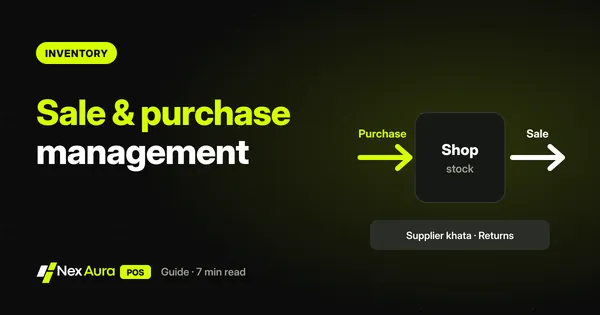
How small shops can manage sales and purchases: what to record, supplier ledgers, credit purchases, returns and when sale purchase software helps.
You don't need a warehouse system to control stock. You need a few habits, a simple record and a clear idea of what to reorder and what to stop buying.
Stock is cash sitting on shelves. Too much of it ties up money you need for rent and salaries; too little sends customers to the next shop. Most small shops lose money on stock in three quiet ways: items that never sell, items that run out at the worst time, and items that disappear (damage, theft, or simply not being recorded).
Start by splitting stock into three groups — the ABC idea, simplified:
A book shop's A items in March are school book sets; a kiryana store's are flour, oil, sugar and tea.
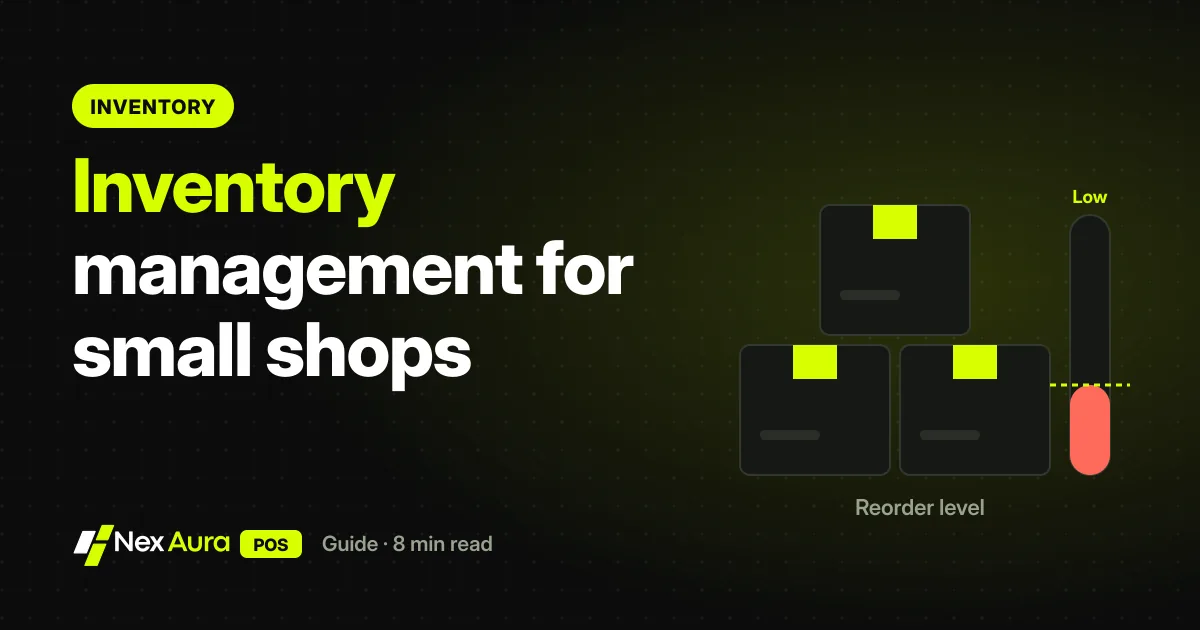
A reorder level is the quantity at which you place a new order. A simple rule:
Reorder level = average daily sales × days the supplier takes to deliver + a small safety stock
Example: you sell 6 packets a day, the supplier takes 3 days, and you keep 6 extra as safety → reorder at 6 × 3 + 6 = 24 packets.
Stock records are only as good as the last entry. If purchases are written "later" or sales are recorded as one daily total without items, the stock figure drifts. This is where sale and purchase records come together — see sale and purchase management.
Every quarter, list items that haven't sold in 90 days. Options: a discount shelf, a bundle with a fast seller, returning to the supplier if they allow it, or simply not reordering. Money stuck in slow stock is the most expensive money in the shop.
A stock management Excel template is a fine start: columns for item, opening stock, purchases, sales, closing stock and reorder level, with a formula closing = opening + purchases − sales. It starts to fail when:
At that point a stock management app or shop software saves time and arguments.
NexAura POS keeps supplier purchases and payments in supplier ledgers, records daily sales and expenses, and lets you control who can add products or delete them.
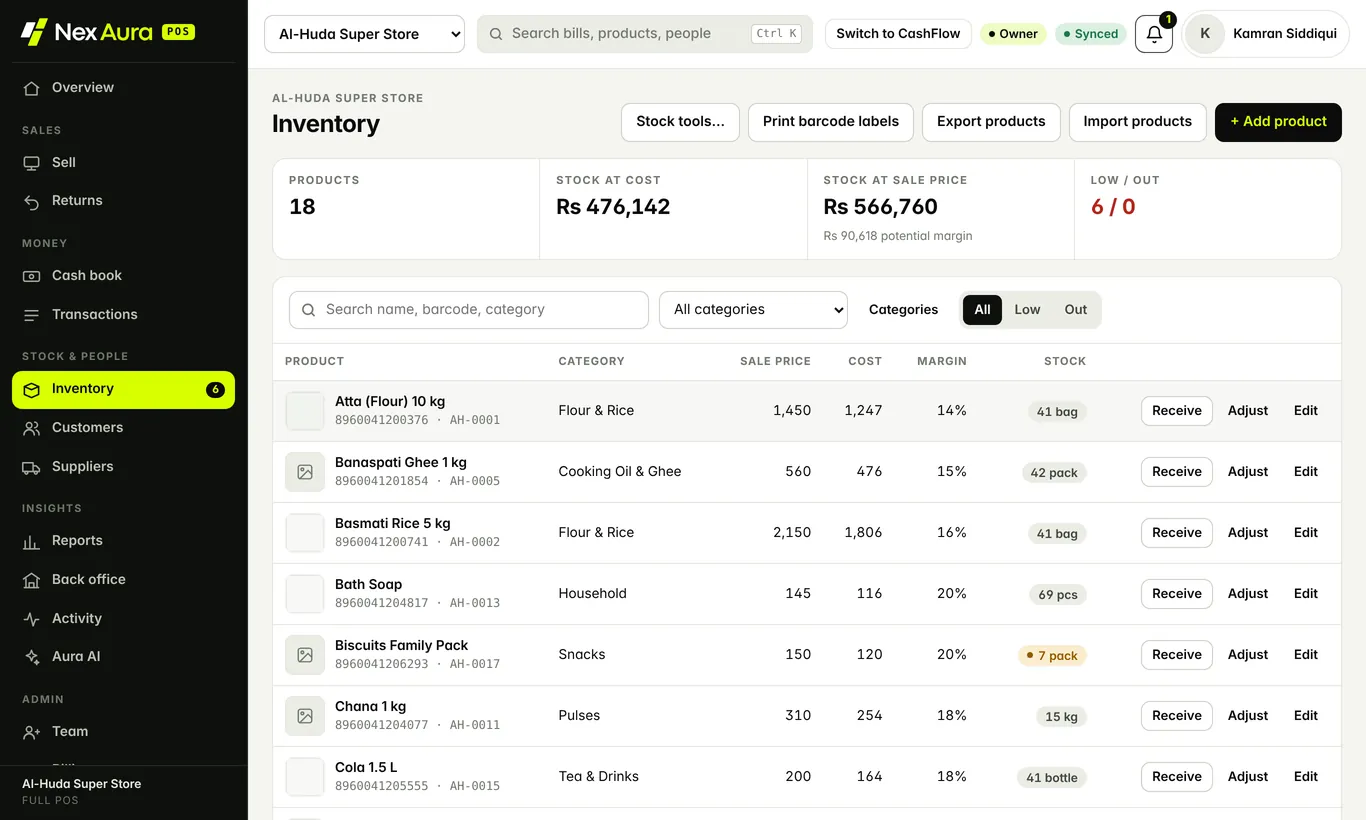
In Full POS mode it also keeps product stock: stock changes as you sell and as you receive purchases, and low items are flagged for reordering. See inventory & sale-purchase.
How small shops can manage sales and purchases: what to record, supplier ledgers, credit purchases, returns and when sale purchase software helps.
Running a stationery and book shop in Pakistan: school-season planning, stock groups, supplier credit, udhaar for schools, daily cash and margins.
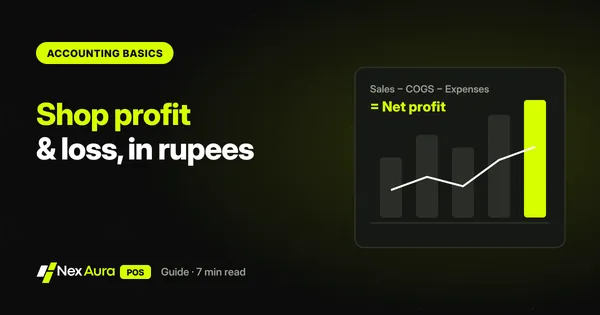
How to calculate shop profit and loss: sales, cost of goods sold, gross profit, expenses and net profit — with a worked example in rupees.
Start a 14-day free trial — no payment needed. Set up your business, add products or import them from Excel, and make your first bill today.